The 8 Best Premiere Pro Plugins in 2026 (Free & Paid)
The best Premiere Pro plugin for you depends on the job you keep repeating. Premiere Pro 25.5 (September 2025) added 90+ transitions and effects from Adobe's Film Impact acquisition, and the built-in Text-Based Editing and Enhance Speech already handle a lot of cleanup for free. So the short version: use Premiere's built-ins for basic cuts, captions, and audio repair, and pay for a plugin only where you have a real gap.
Quick picks by job:
- BuzzRolls Studio: your AI app (Claude, ChatGPT Codex, Cursor, and others) drives 60+ Premiere tools while the edit stays in your Premiere timeline for review.
- FireCut: a self-contained AI panel for silence cutting, captions, podcasts, and B-roll, from $19/month with a 7-day free trial.
- AutoCut: ten AI editing tools in one panel, plus DaVinci Resolve support, with a 14-day free trial.
- AutoPod: purpose-built multicam podcast editing, $29/month with a 30-day trial.
- Mister Horse Animation Composer: a free title and template plugin with 1,000+ assets, or 6,000+ on the paid plan.
- Motion Bro: a free preset browser with 1,400 free transition and effect presets, plus paid packs from $4.
- Boris FX Sapphire: broadcast-grade effects and transitions, $80/month or a $1,865 perpetual license, with a watermarked free trial.
- Excalibur: a keyboard launcher that finds and applies effects, presets, and commands, $120 one-time plus VAT.
We put this list together in November 2026 from each vendor's own website, with prices dated and linked. One disclosure up front: BuzzRolls Studio is our product, and we say so plainly in its section so you can weigh that bias yourself.
Check what Premiere Pro already does for free
Several jobs that used to need a plugin now ship with Premiere itself. Before spending money, check these:
- Transitions and effects: Starting with Premiere Pro 25.5 in September 2025, more than 90 transitions, effects, and animations from Adobe's Film Impact acquisition are included in every plan, all GPU-accelerated, with a Film Impact Dashboard panel for live previews. Adobe explains the release on its blog, and Film Impact confirms on its own site that the library is fully integrated from 25.5 onward.
- Silence and filler cleanup: Text-Based Editing can detect pauses in a transcript and bulk delete fillers, pauses, or whole lines of dialogue. Adobe's pause deletion guide walks through the filter-and-delete workflow.
- Captions: Speech to Text transcribes your footage and turns the transcript into a caption track. The captions overview covers styling and export formats.
- Voice cleanup: Enhance Speech separates dialogue from noise and music. The V1 model runs on your machine at no extra cost; the V2 model runs in the cloud and uses two generative credits per minute, per Adobe's Enhance Speech page. We tested the underlying tech in our Adobe Podcast Enhance Speech review, including where it fails.
That still leaves real gaps. The built-ins handle one-click cleanup well, but they do not assemble a first draft, cut bad takes from a multicam podcast, find B-roll for your narration, or chain multi-step edits. Those are the jobs the plugins below are for.
How this list was picked
Every entry had to pass these criteria:
- Works in current Premiere versions and was updated in 2025 or 2026. Discontinued tools are excluded.
- Solves a recurring editing job, not a one-off effect.
- Does the work inside Premiere on your timeline, rather than shipping your footage out to another app and importing results back.
- Publishes pricing on its own website, with a free tier, trial, or other way to try before paying.
- States clearly who it fits and what it costs before paid tiers unlock features.
Disclosure: BuzzRolls Studio appears first because we make it, and this list is published by BuzzRolls. Its description below uses only our own published documentation. Everyone else's description comes from their own pages, read in November 2026.
The 8 best Premiere Pro plugins at a glance
| Plugin | Best for | What it does | Pricing (checked Nov 2026) | Free way to try |
|---|---|---|---|---|
| BuzzRolls Studio | AI-assisted editing with human review | Your AI app drives 60+ Premiere tools; edits land in your timeline | Lite and Pro plans, see site | See site |
| FireCut | Talking heads and podcast cleanup | Silences, fillers, captions, chapters, B-roll | From $19/month | 7-day trial |
| AutoCut | All-around AI suite, plus Resolve | Silences, captions, zooms, shorts, profanity filter | From $6.60/month | 14-day trial |
| AutoPod | Multicam podcasts | Auto multicam cutting, social clips, jump cuts | $29/month | 30-day trial |
| Mister Horse Animation Composer | Titles and templates | Drag-and-drop titles, transitions, sound effects | Free plan; $19.90/month full library | Free plan |
| Motion Bro | Transitions and presets | Preset browser with 1,400 free presets | Free; packs from $4 | Free pack |
| Boris FX Sapphire | High-end effects | 270+ effects and transitions, 3,000+ presets | $80/month or $1,865 perpetual | Watermarked trial |
| Excalibur | Workflow speed | Keyboard search and chained commands | $120 one-time + VAT | Not published |
1. BuzzRolls Studio: AI editing that stays in your timeline
BuzzRolls Studio takes a different approach from the panel plugins below. Instead of a fixed set of buttons, it is a Premiere Pro plugin and remote MCP server that lets an AI app you already use, such as Claude, ChatGPT Codex, Cursor, or Google Antigravity, control Premiere Pro through more than 60 editing tools. You describe the job in conversation, the AI drives Premiere, and you review the result on your own timeline.
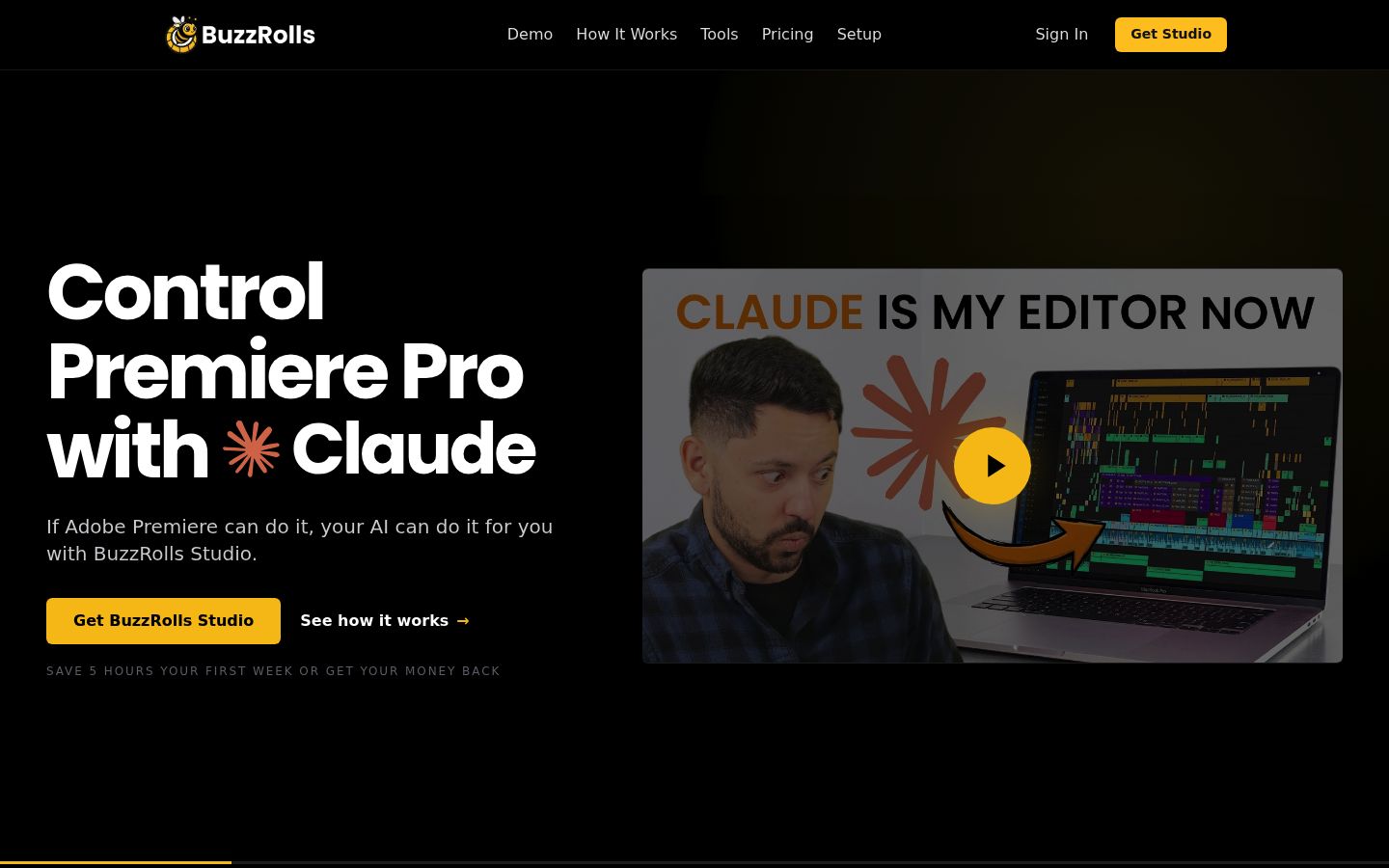
What it covers: removing bad takes, filler, and silences from talking-head or A-roll footage; building transcript-driven edits and clean first-pass sequences; adding B-roll based on the narration or the timeline; organizing media, bins, and timeline structure; applying repeatable edits, effects, and transitions; and editing multicamera podcasts and other long-form video.
The difference from the other AI plugins here is that there is no fixed menu of features. Because the AI calls Premiere's own editing tools step by step, it can chain jobs together (clean up the A-roll, then add B-roll, then organize the bins) in one request, and every change is a normal Premiere edit you can inspect, tweak, or undo. That fits editors who want AI to do the grinding but want the final say. See how BuzzRolls Studio works, browse every tool your AI can use, or read our hands-on tests of Premiere Pro AI plugins.
Tradeoffs: it needs a supported AI app connected during setup, and it suits editors comfortable directing an assistant rather than clicking preset buttons. If you want a one-click panel with no setup, FireCut or AutoCut may fit better.
2. FireCut: the all-in-one AI panel for talking heads and podcasts
FireCut is a self-contained AI plugin for Premiere Pro. It automates the classic talking-head cleanup jobs: one-click and advanced silence cutting, J-cuts, filler and repetition removal, animated captions in 50+ languages, chapter detection for YouTube, zoom cuts, podcast auto-editing, and B-roll and music suggestions.
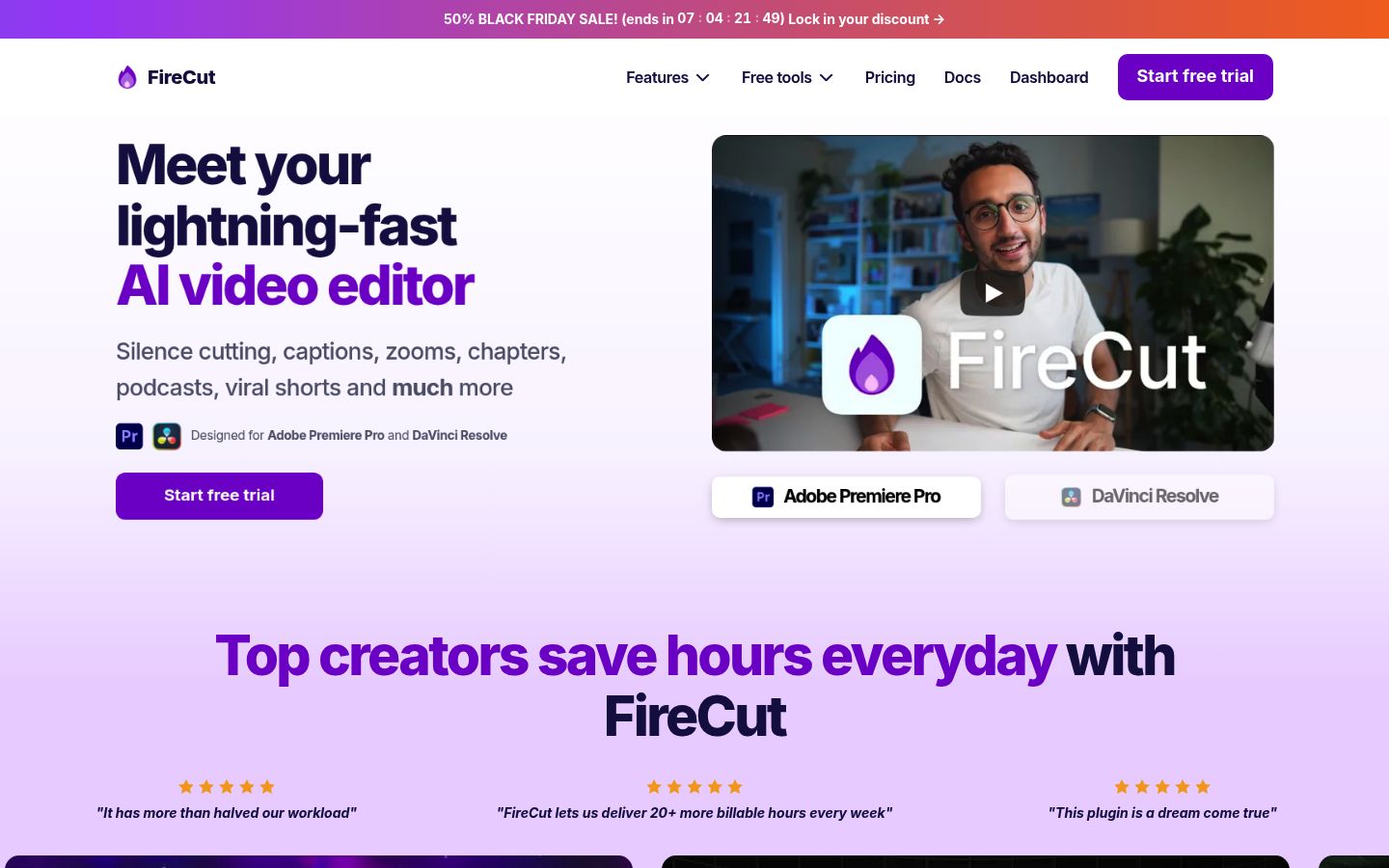
Pricing on FireCut's pricing page, checked November 2026: Starter costs $19/month (silence cutting and J-cuts). Pro costs $34/month and adds 25 hours of transcription per month plus captions, podcast editing, chapters, and B-roll. Max costs $59/month with 100 transcription hours, edit-to-script, and AI voiceover. Yearly billing was 50% off ($9.50, $17, and $29.50 per month) during FireCut's Black Friday sale, so check the current yearly rate. Teams start at $34/month per user. A 7-day free trial is available.
Tradeoffs: Pro and Max meter by hours of source video processed per month, shared across features, so heavy editors should check the caps against their volume. If you edit a few videos a week, Pro covers the usual jobs.
3. AutoCut: ten AI tools in one panel, plus DaVinci Resolve support
AutoCut packs ten AI features into one panel that works in both Premiere Pro and DaVinci Resolve. The lineup covers silences, editable and animated captions, podcast editing, automatic camera-angle switching, zooms, viral shorts from long videos, B-roll from Storyblocks, bad-take removal, a profanity filter, and auto chapters.
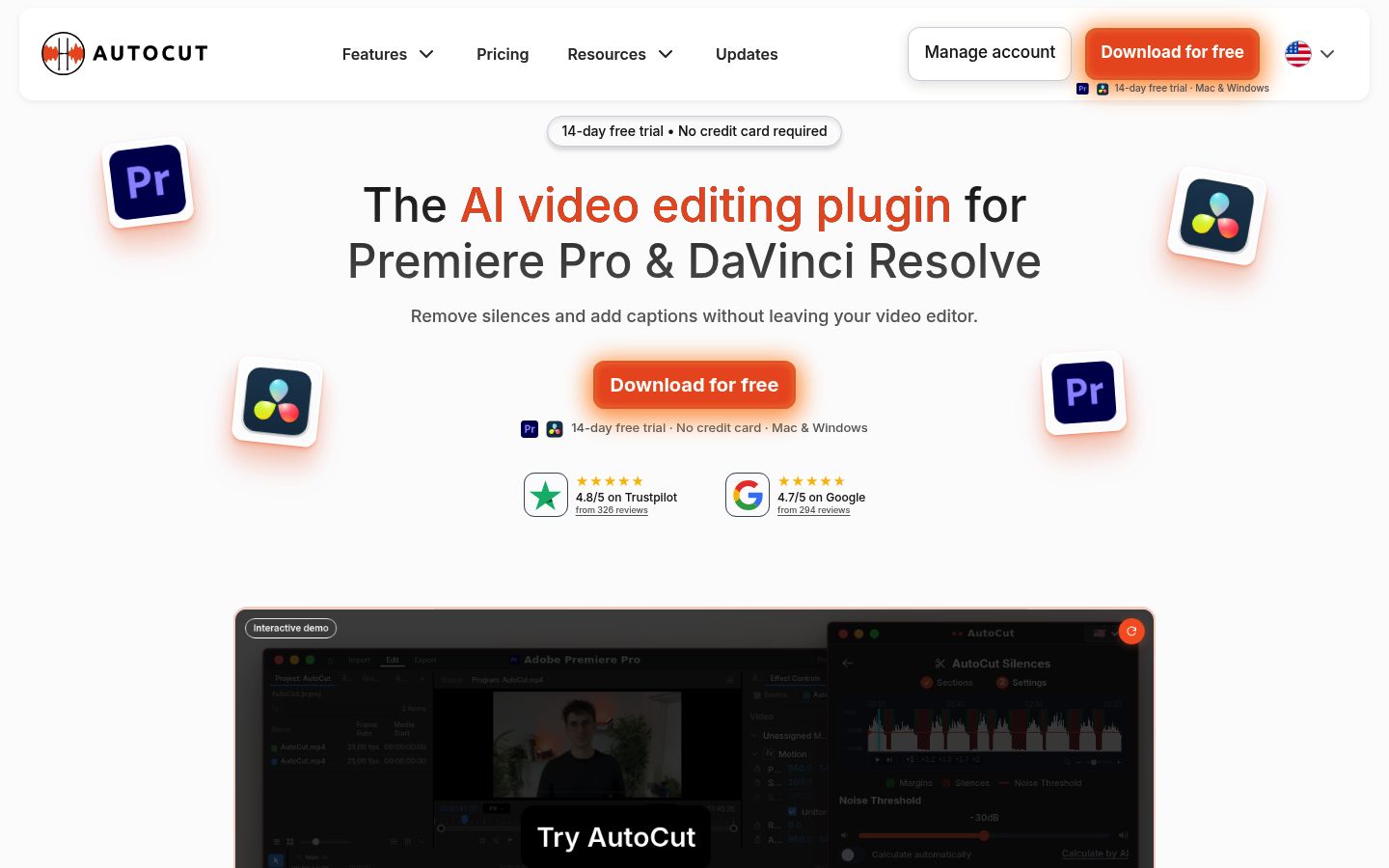
Pricing on AutoCut's pricing page, checked November 2026: the Basic plan (silence removal only) costs $9.90/month, or $6.60/month billed yearly at $79 per year. The AI Plan unlocks all features at $19.80/month, or $14.90/month billed yearly at $178.80. Enterprise costs $19.90/month per license with team features. The 14-day free trial needs no credit card, and the company states there is no limit on project length.
Tradeoffs: the Basic plan only does silences, and Premiere's free Text-Based Editing already does that, so most readers should start on the trial and judge the full AI Plan. If you also cut in Resolve, AutoCut's support for both is a real advantage over FireCut.
4. AutoPod: purpose-built multicam podcast editing
AutoPod does one job for one audience: video podcasts. Its Multi-Camera Editor automatically cuts multicam sequences for up to 10 cameras and 10 microphones, based on who is speaking, the camera layout, and standard editing conventions. The pack also includes a Social Clip Creator for vertical and square clips and a Jump Cut Editor that cuts on silence for social edits.
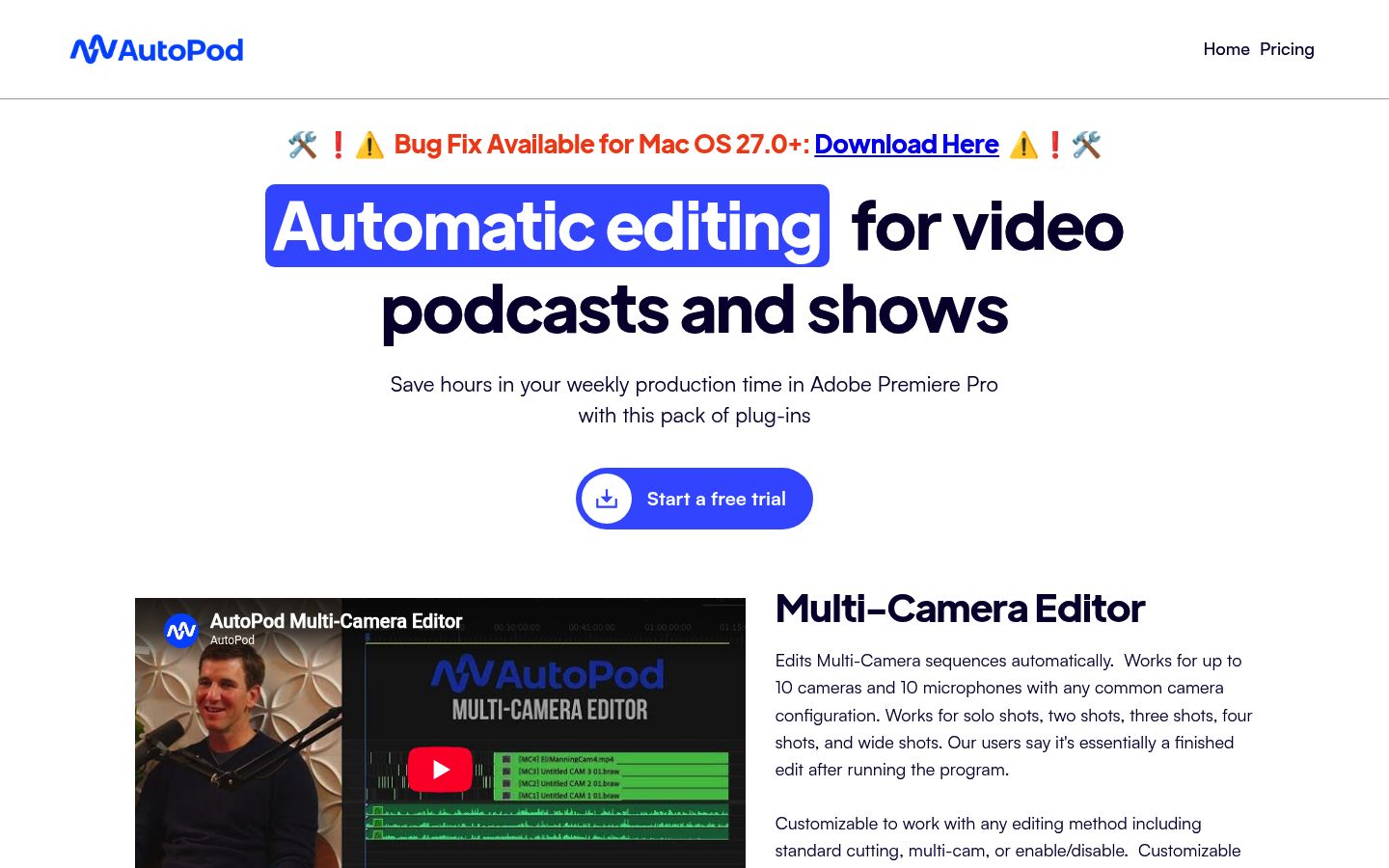
Pricing on AutoPod's pricing page, checked November 2026: one Individual license is $29/month and includes all three tools, with a 30-day free trial on monthly billing and one month free per year on annual billing. Each license activates on one computer. It needs Premiere Pro 2023 or newer, and the multicam editor requires multiple cameras with a separate audio track per speaker; it will not work from a single mixed audio source. A DaVinci Resolve version is also available.
Tradeoffs: $29/month buys a narrow job, and solo creators with one camera get nothing from the multicam editor, so it costs more than the general AI suites' entry tiers while covering less outside podcasts. But if you cut multi-guest podcasts every week, replacing hours of camera switching with one pass is exactly what it is built for, and its 30-day trial is the longest on this list.
5. Mister Horse Animation Composer: the free title and template library
Mister Horse's Animation Composer (called Premiere Composer until its June 2026 rename) is a plugin for dropping in pre-built titles, text animations, transitions, motion presets, sound effects, and graphic components, all customizable on the timeline. It runs in Premiere Pro 2025 and newer and in After Effects.
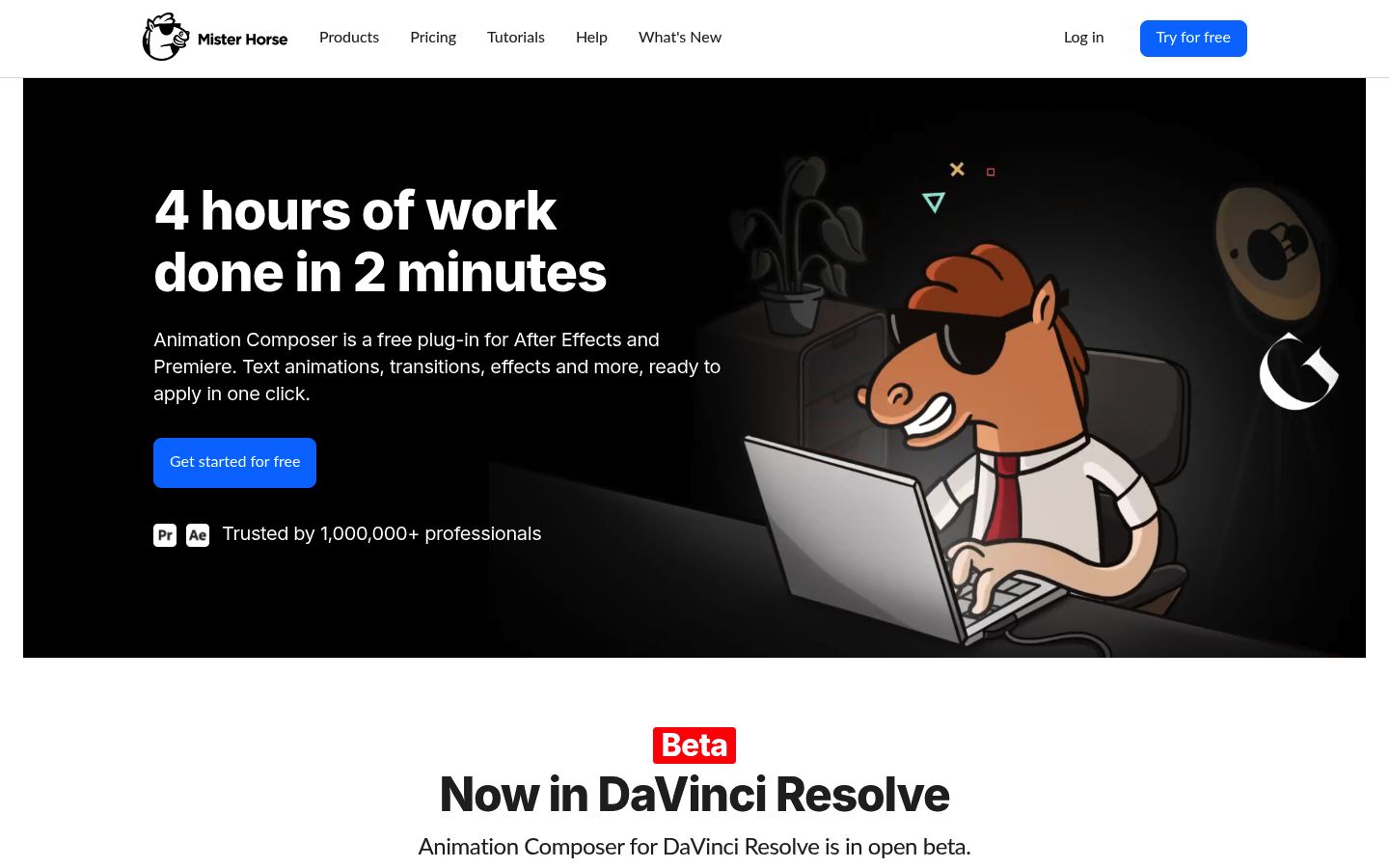
Pricing on Mister Horse's pricing page, checked November 2026: the plugin and a starter set of 1,000+ assets are free, including for commercial work, with a User Library of up to 500 of your own items. The full library of 6,000+ assets costs $19.90/month, or $198 billed yearly (about $16.50/month). Older perpetual licenses keep working after the move to subscriptions.
Tradeoffs: it is a template browser, not an AI or cleanup tool, and the most attractive packs sit behind the paid plan. But as a free source of professional-looking titles with no subscription, it is the strongest starting point for any editor building a title system.
6. Motion Bro: the free preset browser for transitions and effects
Motion Bro is a free plugin for Premiere Pro and After Effects that lets you browse, preview, and apply transition and effect presets in one click. The free presets pack includes 1,400 presets across eight packages, including seamless and overlap transitions and graphic elements, and it works with the company's sound effects pack so transitions arrive with sound.
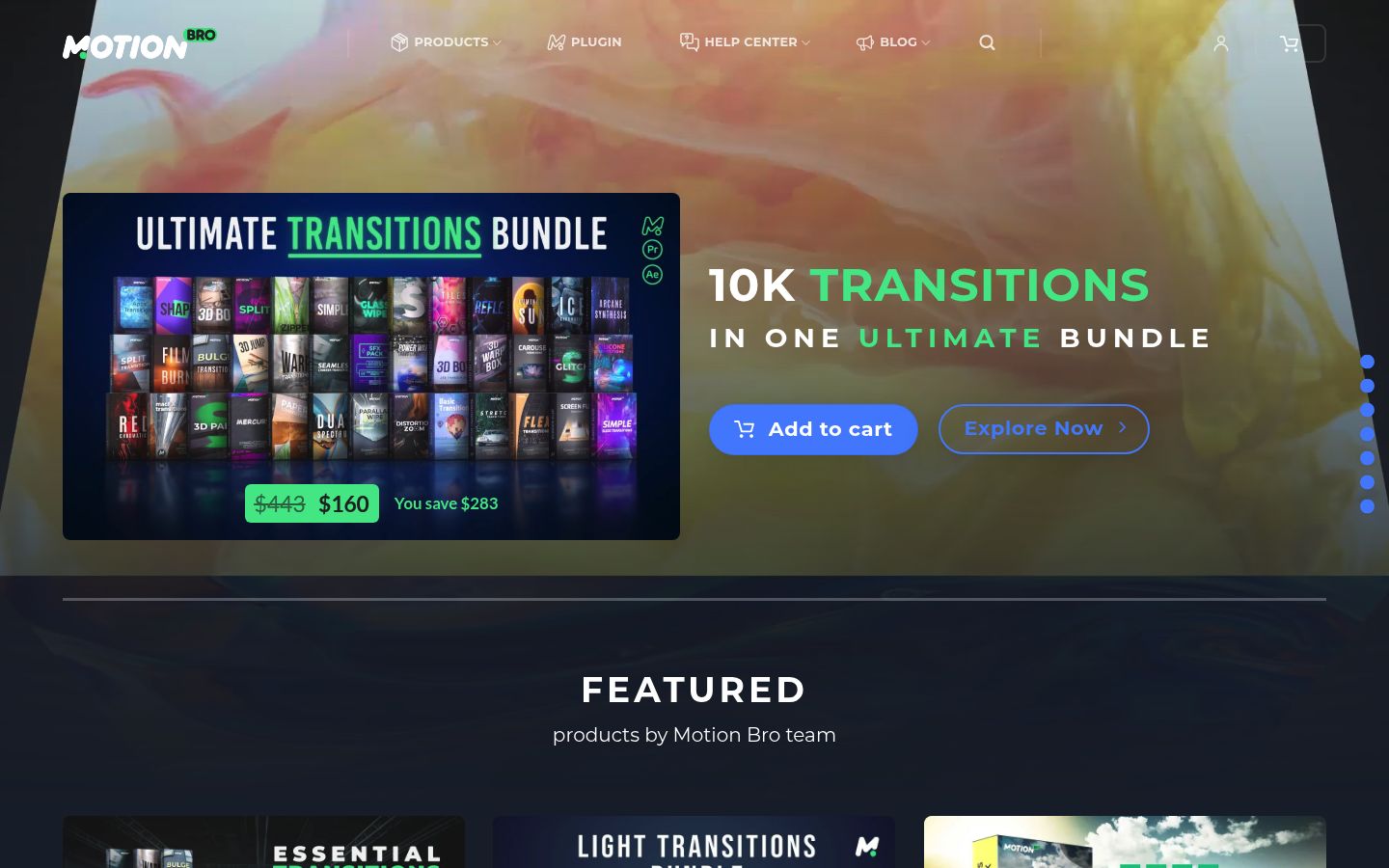
Pricing on Motion Bro's product pages, checked November 2026: the free pack is free for personal use, with a commercial license available. Paid packs start at $4 for the Seamless Transitions Starter Pack, up to bundles like the Essential Transitions Bundle at $59 and the Ultimate bundle at $160. Presets are built from standard Premiere and After Effects effects, so projects open correctly even on machines without the plugin.
Tradeoffs: this is a preset marketplace, not an automation tool, and buying packs one at a time adds up. Its packs need Premiere Pro 2024 or newer. For pure free value, though, 1,400 presets with a working browser is hard to beat.
7. Boris FX Sapphire: broadcast-grade effects and transitions
Boris FX Sapphire is the high-end option, in continuous development since 1996 and the winner of a Primetime Engineering Emmy. It brings more than 270 effects and transitions and 3,000+ presets to Premiere Pro, After Effects, Avid, Resolve, Nuke, and other hosts, GPU-accelerated across platforms, including 65 GPU-accelerated transitions and an Effect and Transition Builder for designing your own.
Pricing on Sapphire's product page, checked November 2026: the Adobe/OFX license, which covers Premiere Pro, costs $80/month, $545/year, or $1,865 as a perpetual license with a 12-month support plan included. A free watermarked trial installs through the Boris FX Hub.
Tradeoffs: this is the most expensive tool here by a wide margin, and Premiere 25.5's built-in transitions cover many everyday looks for free. Sapphire is for editors doing commercial, broadcast, or film work who need a deep, reliable effects library their clients will recognize.
8. Excalibur: keyboard speed for effects, presets, and commands
Excalibur, from Knights of the Editing Table, is a workflow plugin rather than a content tool. It opens a search bar over Premiere so you can find and apply any effect, preset, or transition without leaving the keyboard. It also adds modified Premiere commands, such as an Apply Transition dialog and Fill Frame, and its real power is user commands: you chain several actions into one and bind the whole sequence to a shortcut.
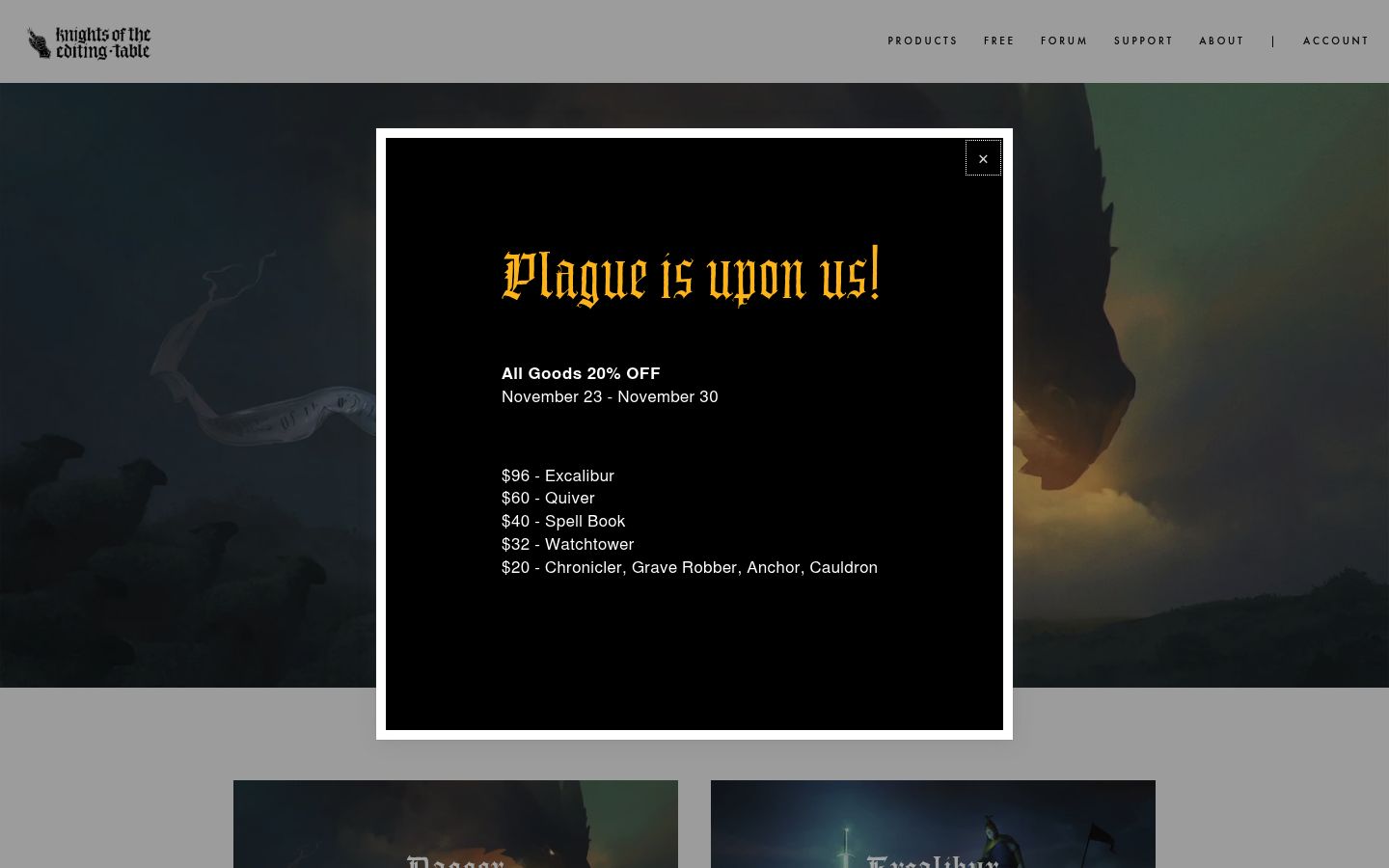
Pricing and requirements per the product page, checked November 2026: $120 plus applicable VAT, with a license for two machines per user, running in Premiere Pro 2020 or newer on Windows or macOS 10.14.5 or later. The page does not state a trial, so confirm that with the maker before buying.
Tradeoffs: $120 is a real purchase for a utility, and the payoff depends on how many repetitive actions your day contains. Editors who live on the keyboard get compounding returns; occasional editors may not notice the difference.
Plugin stacks by editing type
Rather than buying one of everything, match the stack to the work:
- YouTube talking heads: Premiere's built-in Text-Based Editing and Enhance Speech cover basic cleanup. Add BuzzRolls Studio or FireCut for first-pass assembly, B-roll, and chapters. Our guide to editing for viewer retention pairs well with either.
- Multicam podcasts: AutoPod is the specialist pick. BuzzRolls Studio also handles multicam podcast editing while keeping the cut in your timeline for review. FireCut Pro and AutoCut both offer podcast modes for lighter needs.
- Client and commercial work: Premiere 25.5's built-in transitions cover the basics, Animation Composer or Motion Bro supply branded titles and presets, and Sapphire earns its price once clients expect broadcast-grade looks. Excalibur suits any stack where the same actions repeat every hour.
How to install a Premiere Pro plugin (and stay compatible)
Most Premiere Pro plugins ship as an installer that adds a panel under Window > Extensions, while effect plugins install through Adobe's Creative Cloud app or the vendor's own installer. Three checks before you buy:
- Confirm your Premiere version matches the vendor's stated range, for example Premiere 2023+ for AutoPod, 2025+ for Animation Composer, or 2024+ for Motion Bro packs.
- Confirm your OS and hardware, since some AI features need Apple Silicon or a supported GPU.
- Install from the vendor's own site or Adobe's marketplace, and keep a note of the license terms per machine.
For BuzzRolls, the setup guide walks through connecting your AI app, and the supported apps page lists which ones work.
FAQ
Are Premiere Pro plugins safe and official? Premiere supports both effect plugins and panel extensions, but most third-party plugins are not made by Adobe. Buy from the vendor's own site or Adobe's marketplace, check the stated Premiere and OS requirements, and be wary of reposted installers.
What do you actually get for free? In Premiere itself: Text-Based Editing cleanup, Speech to Text captions, Enhance Speech V1, and the 90+ transitions added in 25.5. Among the plugins, Animation Composer's free plan and Motion Bro's free preset pack are genuinely free. The AI plugins are subscriptions with trials rather than free tiers.
Do you still need plugins in 2026? For basic cleanup and standard transitions, often no. You need one when the job is bigger than a one-click tool: assembling drafts, cutting multicam podcasts, adding B-roll, or chaining repeatable edits.
Which AI app works with which plugin? FireCut, AutoCut, and AutoPod are self-contained panels that need no outside AI app. BuzzRolls Studio works the other way: it connects an AI app you already use to Premiere through its MCP server, so what you can do depends on the AI app you connect during setup.
The bottom line
Start with what Premiere already does for free, then buy for the gap you actually feel. If your bottleneck is the repetitive first pass, an AI automation plugin pays for itself fastest. If you want AI to do the grinding while every change lands in your own Premiere timeline for review, that is exactly how BuzzRolls Studio is built. You can compare the Lite and Pro plans on our homepage and start editing with it today, or read more Premiere Pro workflow guides on our blog before you decide.
Ready to speed up your editing workflow?
BuzzRolls Studio connects your AI app to Adobe Premiere Pro so you can clean up takes and pauses, add B-roll, and keep editing in your own timeline.